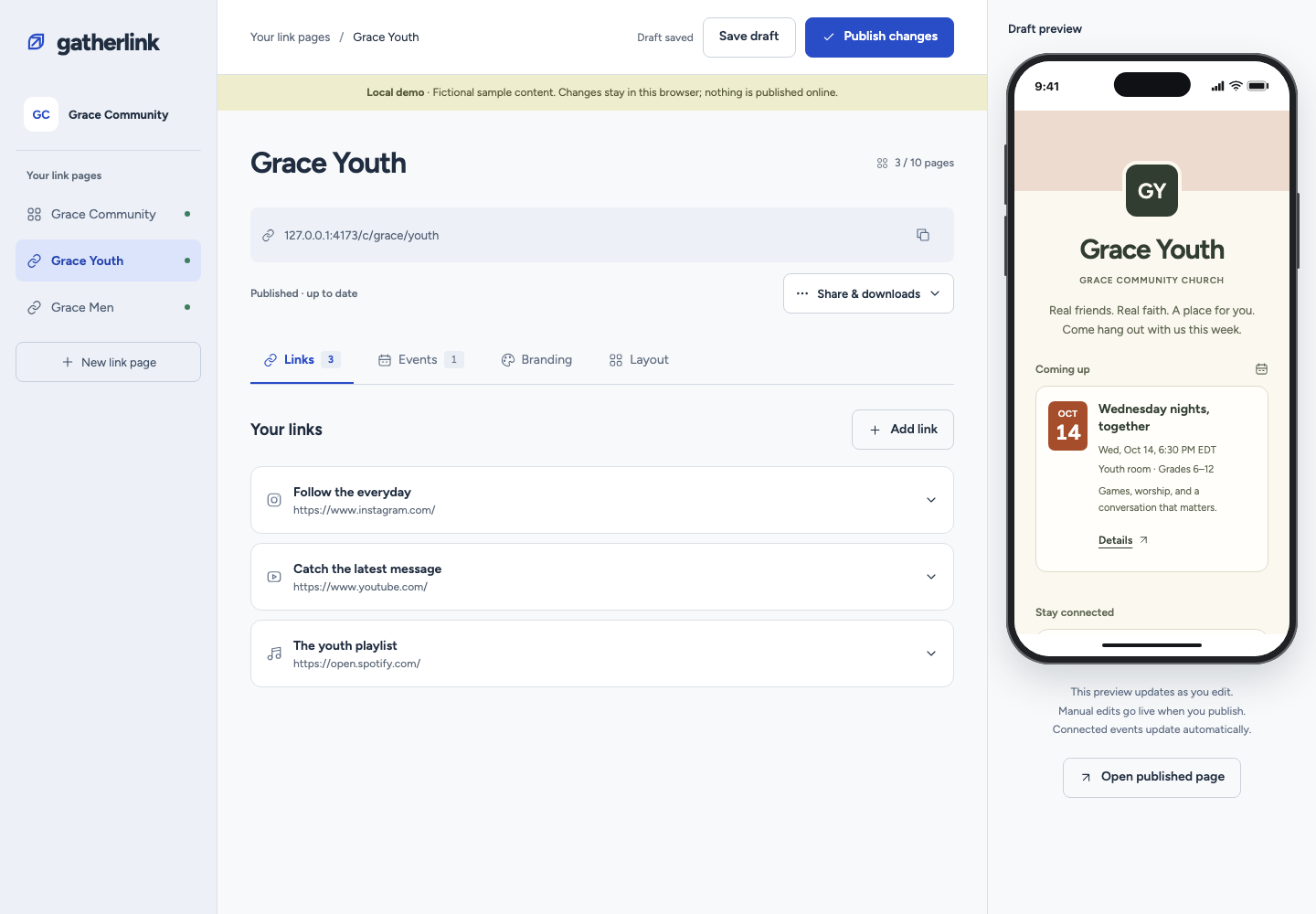
Desktop demo: choose a ministry under Your link pages, edit in the center, and review the draft on the right. Save and Publish are separate controls at the top.
Your link pages: select the ministry you want to update. On a narrow screen, the ministry selector moves above the editor and can scroll sideways.
Links, Events, Branding, Layout: use these four tabs to change the selected page. Select a link or event row to expand its fields.
Share & downloads: copy your page address and find the available downloads. Find instructions for QR downloads and Analytics in this wiki. The pictured demo has fewer controls than the application.
Draft preview: check your edits as you make them. On a phone, choose Preview page, then Back to editing. Use Open published page to see what visitors currently see.